PlatePlaya · Game-day guides
How to Import Your Own Audio into PlatePlaya
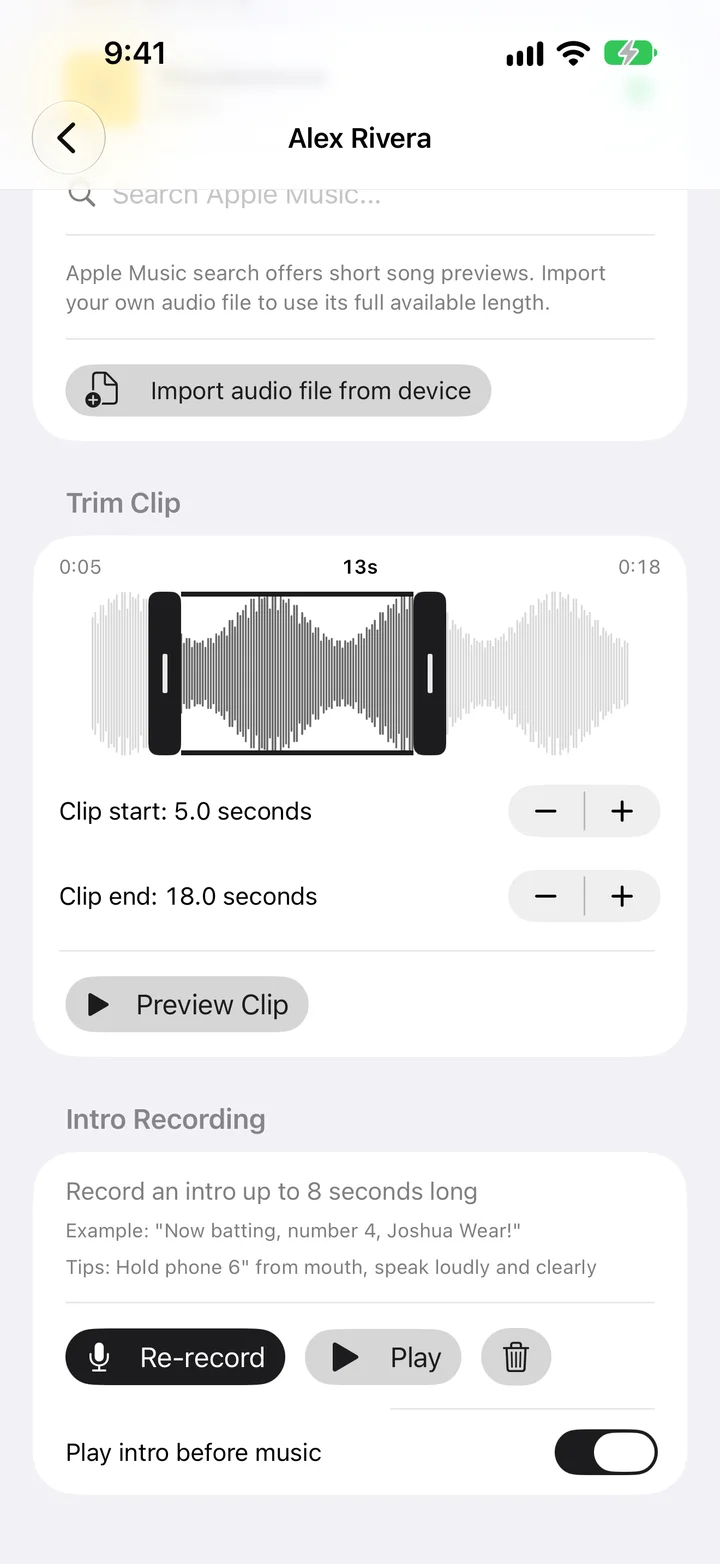
Import audio from the player’s edit screen, not the team roster import screen. Choose Import audio file from device, select a downloaded audio file, then preview and trim it.
Which Import button should I use?
| You have… | Use… |
|---|---|
| A downloaded song or other audio file | Import audio file from device in the player editor |
| A spreadsheet of player names and song details | Import team roster from CSV |
| A PlatePlaya team backup | Restore a team backup |
On iPhone or iPad
- Open the team, then open or add the player.
- In the song section, choose Import audio file from device.
- Use the Files picker to browse the location where you saved the file, such as Downloads, On My iPhone, or iCloud Drive. Available locations depend on your device.
- Select the audio file and wait for it to load. Preview it, adjust the trim range, and save the player.
On Android
- Open the team and the player’s editor.
- Choose Import audio file from device.
- In the system picker, open the navigation menu. Try Audio, Downloads, your device’s storage, or the cloud provider where the file is saved. Labels vary by phone.
- Select the file, preview it, adjust the trim range, and save the player.
The picker can open in a recent folder or cloud account rather than where your file is stored. Choosing another location does not erase anything.
Why can’t I find my audio?
- Confirm the file exists in your phone’s Files or file-manager app. If it is an attachment, save the actual audio file first.
- Check the cloud account and folder. A cloud-only file may need to download before it can be opened.
- Downloads kept inside a streaming music app are not ordinary audio files that this picker can import.
- If the file appears but cannot play, it may be protected, incomplete, or in an encoding your device cannot decode. Renaming its extension does not convert it.
Common audio files such as MP3, M4A, and WAV are good starting points, but the actual encoding and your device’s decoder determine compatibility. Use audio you are authorized to use.
Can I use more than 30 seconds?
Imported files can use their available audio length. They are not restricted to the short catalog preview offered by music search. Trim inside the imported file, save, and test playback in Game Mode. A catalog preview cannot be extended into the rest of the song by moving the trim handles.
Before game day
Save the player and play the clip in Game Mode through your game-day speaker. Keep the original file and a current team backup. If playback later reports missing audio, select the file again in the player editor.